GoHighLevel Managed Agents Get Sharper Image Generation with GPT Image 2.6
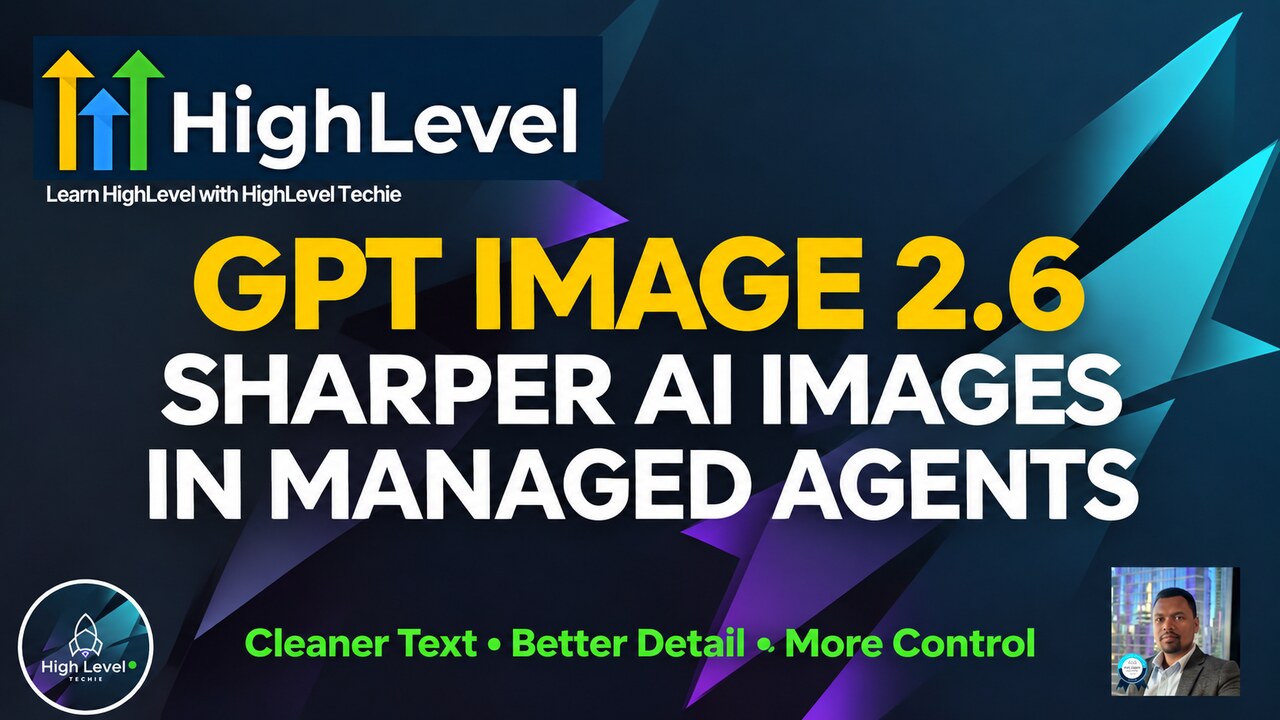
Quick answer: GoHighLevel has updated Managed Agent image generation so Medium and High quality outputs use GPT Image 2.6. The update is designed to deliver sharper visual detail and cleaner text for images used in marketing, social media, product content and other AI-assisted workflows.
Released on 17 November 2026, the change also adds clearer execution visibility: Agent Logs can show the model, quality and size used, while the image-generation settings include a way to compare relative costs across quality levels.
Official source: HighLevel Changelog — Sharper Image Generation in Managed Agents with GPT Image 2.6.
What changed in Managed Agent image generation?
HighLevel says that Medium and High image quality settings now use GPT Image 2.6. The stated improvements are sharper details and clearer text. Low quality continues to use GPT Image 2.5 for faster, more cost-effective drafts.
The update supports multiple aspect ratios, including square, portrait and landscape formats. That gives teams flexibility when producing content for feeds, stories, adverts and web assets.
Why this matters for HighLevel users
Better image quality where it is most visible
Text clarity and fine visual detail matter most in customer-facing creative. Choosing Medium or High can be useful for ad concepts, product imagery, promotional graphics and branded marketing content where a rough draft is not enough.
More deliberate quality-versus-cost choices
HighLevel’s Compare costs option lets users review the relative cost of Low, Medium and High settings before generating. This makes it easier to reserve higher-quality output for final creative and use lower-quality output for early exploration.
More useful execution records
Agent Logs now show the model, quality and size used for an image-generation run. That extra context can help you understand which settings produced the result, review usage and repeat a successful setup more reliably.
How to use the update
- Go to AI Agents → Agent Studio → Managed Agents.
- Open the Managed Agent you want to use for image generation.
- Enable Image Generation, then choose Low, Medium or High quality based on the job.
- Use Compare costs to review the relative quality and cost trade-off.
- Give the agent a specific brief: intended platform, aspect ratio, brand direction, subject and any exact wording that needs review.
- Check the generated image and the Agent Logs before using it in a live campaign.
A practical quality-selection workflow
Use Low quality for quick concept iterations where speed matters. Move to Medium when the design direction is set and you need cleaner customer-facing output. Use High when small visual details and readable text materially affect the result. The best setting depends on the asset, the audience and the level of review you plan to apply.
AI-generated creative should still go through brand, spelling and compliance checks before it is published. A clearer image does not remove the need to validate claims, offers, logos or required disclosures.
Related questions
Which Managed Agent quality settings use GPT Image 2.6?
According to HighLevel’s changelog, Medium and High quality settings use GPT Image 2.6. Low continues to use GPT Image 2.5.
Can I compare image-generation costs in HighLevel?
Yes. HighLevel introduced a Compare costs option in Agent Studio for reviewing the relative cost of Low, Medium and High quality before generating an image.
Can I see which settings generated an image?
Yes. Agent Logs display the model, quality and size used for image-generation executions.
Next step
Run the same tightly written image brief at two quality levels, compare the results against your brand standard, and save the setting that consistently gives you an acceptable balance of quality, speed and cost.